
Alpha source
TagMAKER 0.1.0
Source code available; Windows installer in preparation
Windows .exe not published yet
The moments that matter
Tag every moment of the game.
An offline desktop app for manually tagging basketball and football video. The 0.1 alpha source includes configurable profiles, match clock and score tools, a versioned JSON export, and WebMAKER roster and statistics exchange.
What it does
Manual tagging for basketball and football
Score, game clock and video timestamps
WebMAKER roster import and statistics export
Versioned 0.1 JSON interchange
Get the software
Windows installers appear here only after a release includes a verified executable asset.
Alpha source
Source code available; Windows installer in preparation
Progress by version
How to use it
This guide follows the public TagMAKER 0.1 README. The screenshots show the real app using synthetic teams, players and footage. The source alpha can be run now; the Windows installer is still being prepared.
Read the complete repository tutorial ↗For users
The Windows installer is not published yet. If you are comfortable setting up Python, the source installation steps are in the contributor section below. Once TagMAKER is running, follow these steps for your match.
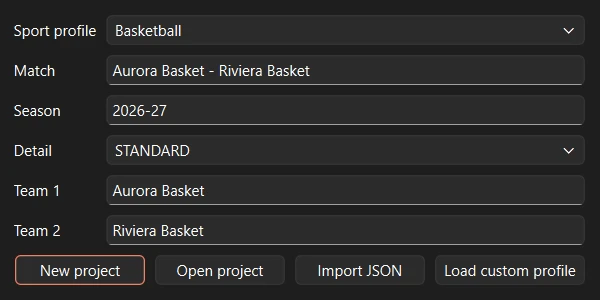
Choose basketball or football, name the match and teams, select the season and a BASIC, STANDARD or ADVANCED tagging level, then save a .tagmaker project. The project is a local SQLite database; video remains in separate files.
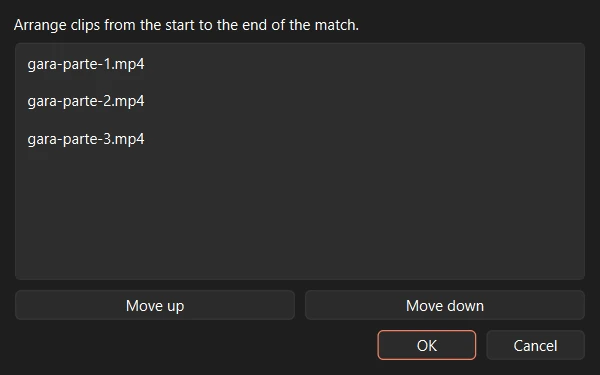
Add one recording or several consecutive clips, then arrange them from the start to the end of the match. TagMAKER treats them as one sequential timeline. If a file moves later, use Relink missing to reconnect it.
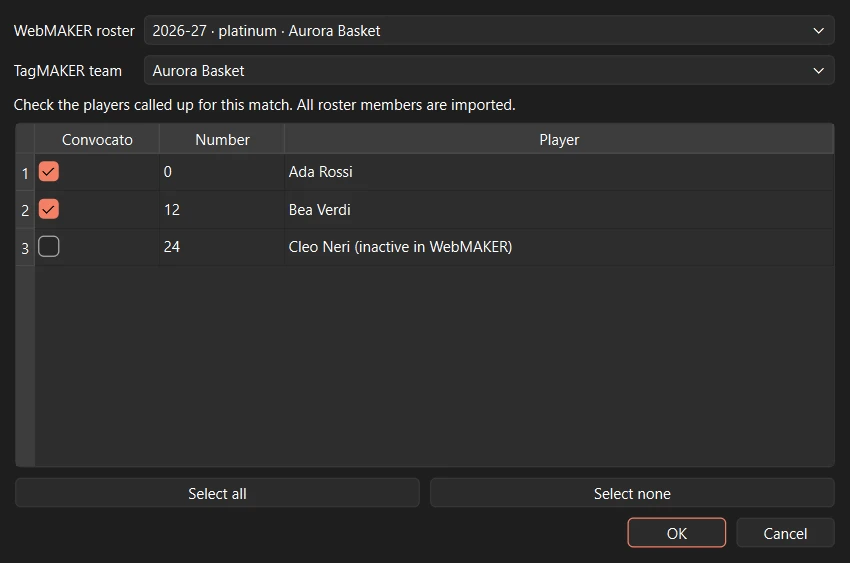
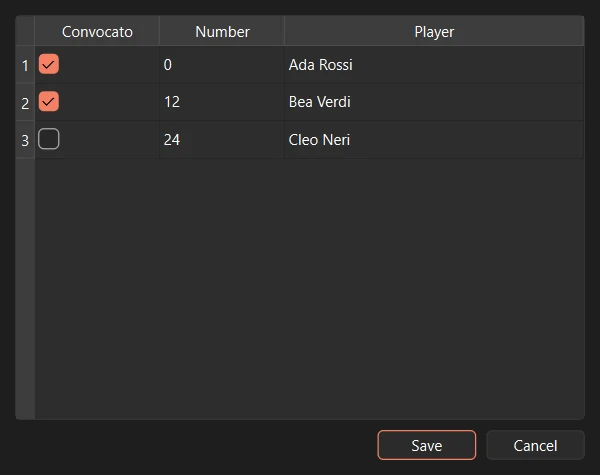
Use Import WebMAKER to read a WebMAKER project roster. Map the team, select called-up players and mark Our squad. You can change the call-up list later from Convocati; imports do not overwrite the source files.
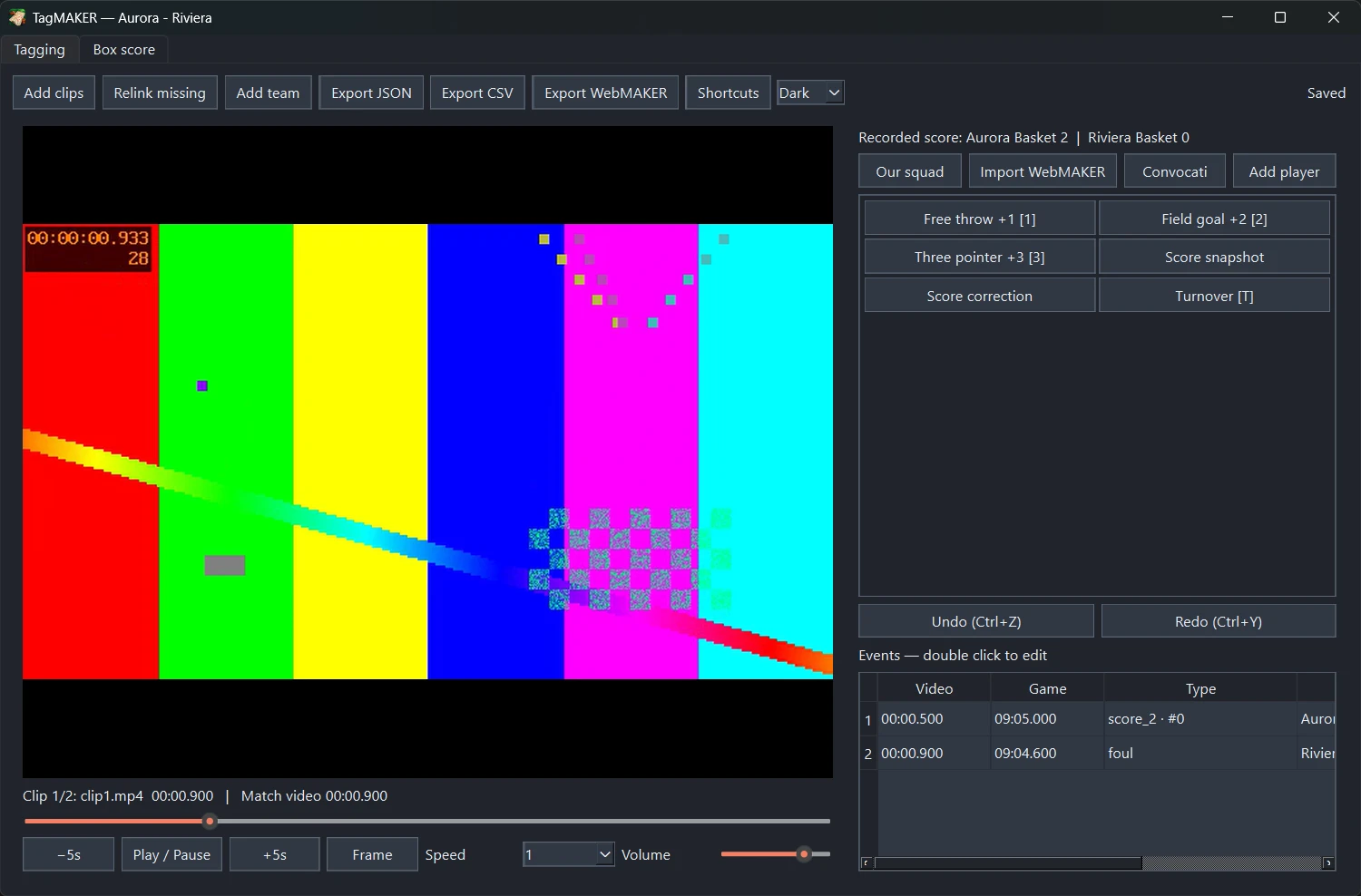
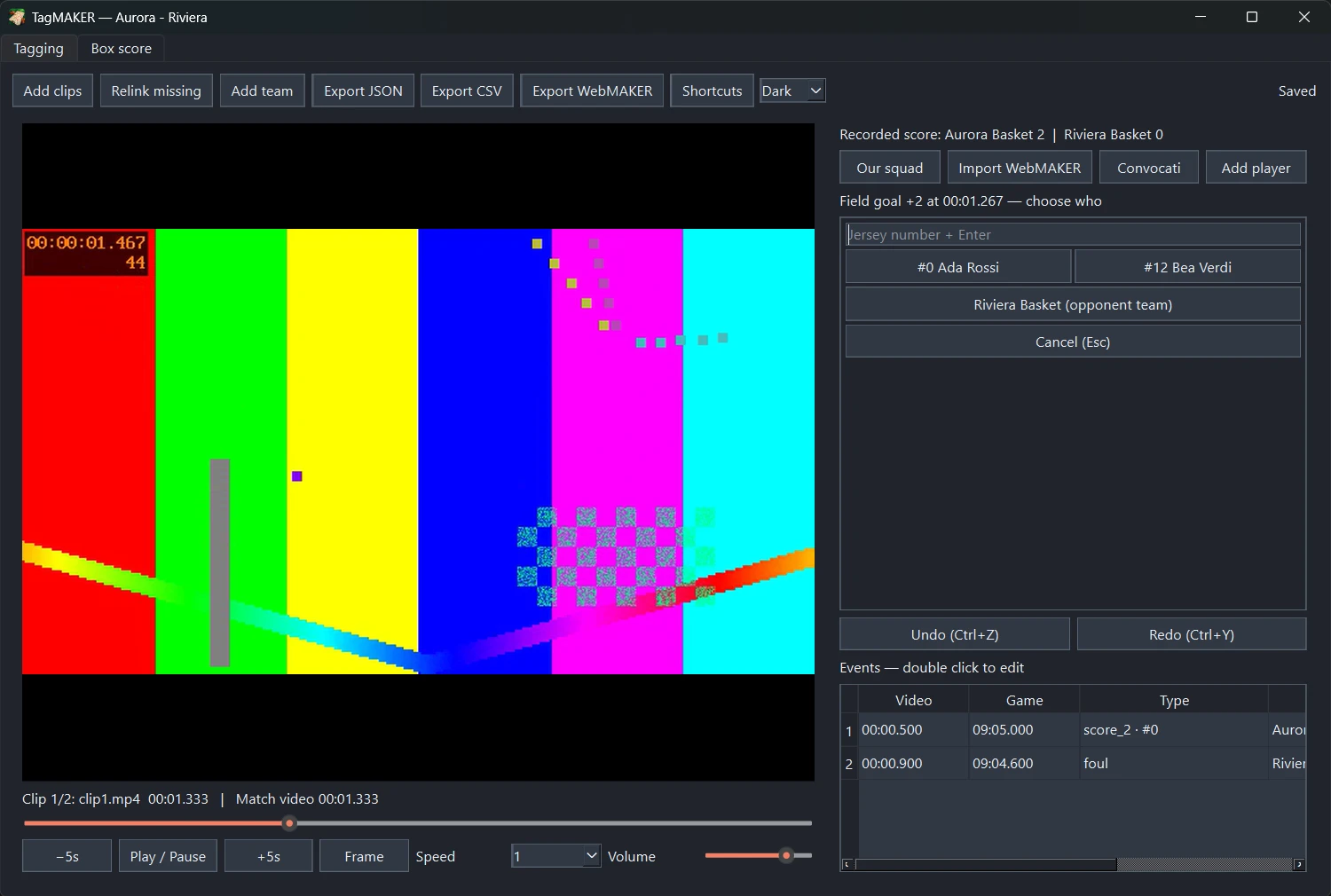
Play or seek through the video and choose an event button or shortcut. For a player event, assign it to a called-up player or the opposing team. The event keeps the video timestamp captured when you selected the tag. Double-click an event in history to edit or remove it.
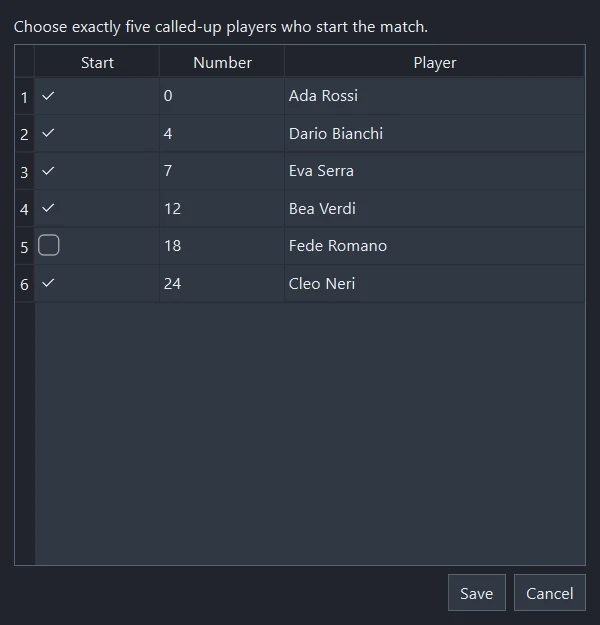
For basketball, select the starting five from called-up players and review the observed box score. Video time is separate from the official game clock: pause at a readable scoreboard, choose Sync clock, and resync after seeks or stoppages. Use a score snapshot or correction when the tag log does not contain every scoring play.
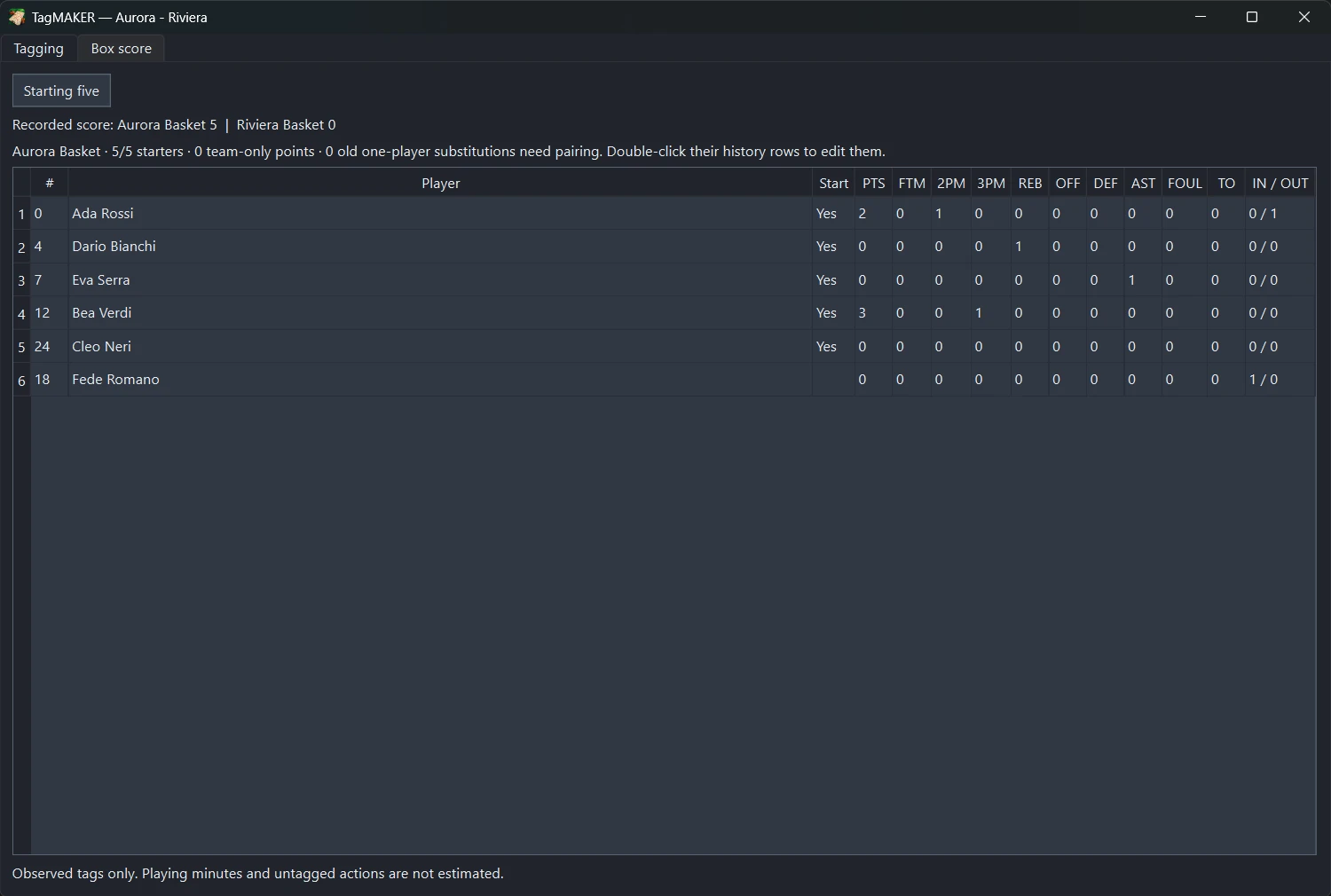
Changes autosave to the local project. Export JSON creates the versioned 0.1 interchange file, without video bytes. Export WebMAKER creates a per-game player-statistics CSV for review and import in WebMAKER Studio. VideoMAKER import is still to be built.
When moving the project to another computer, copy both the database and the video files, then relink media if paths change.
For contributors & developers
The source alpha is public. Start with the repository README for full setup details, and use the versioned data format when changing exports or integrations.
On Windows, install Python 3.11 or newer, then run these PowerShell commands. Video playback also needs a compatible 64-bit libmpv-2.dll obtained separately; choose Configure libmpv in the app and select it.
git clone https://github.com/PlayMAKER-apps/tagmaker.git
cd tagmaker
py -3 -m venv .venv
.\.venv\Scripts\python.exe -m pip install -e ".[test]"
.\.venv\Scripts\tagmaker.exeFork the public repository, clone your fork, create a focused branch and open a pull request against the upstream project. Check existing issues first and explain the user workflow your change improves. Keep real club footage, private player data and credentials out of commits; use synthetic fixtures and screenshots.
Run the documented tests and compile check before a pull request. For changes to JSON or integrations, consult the TagMAKER 0.1 format and shared schema; update relevant tests and documentation together.
.\.venv\Scripts\python.exe -m pytest -q
.\.venv\Scripts\python.exe -m compileall -q app playback tagging storage
Built in the open
The TagMAKER repository contains the 0.1 source, complete tutorial, format specification and issue tracker.